
Multi-Factor Authentication also known as MFA provides an essential layer of security for your Dublin City University (DCU) account. To sign in, you must provide two pieces of evidence:
- Something you know: Your DCU password.
- Something you have: Your mobile phone with the Authenticator app.
This process keeps your data safe, even if your password is stolen. The instructions guide you through the initial setup and how to back up the app so you can independently restore it on a new phone at a later date.
Lost Devices
If you have lost your MFA device and need to reset. Please visit mfarecovery.dcu.ie This service is only available to students of DCU and will require you to have set up a backup email when installing MFA originally.
Installation Steps
Step 1 - Sign into DCU Apps
For staff go to https://www.dcu.ie/dts/staff-my-page and log into DCU Apps.
For students go to https://www.dcu.ie/dts/student-my-page and log into DCU Apps.
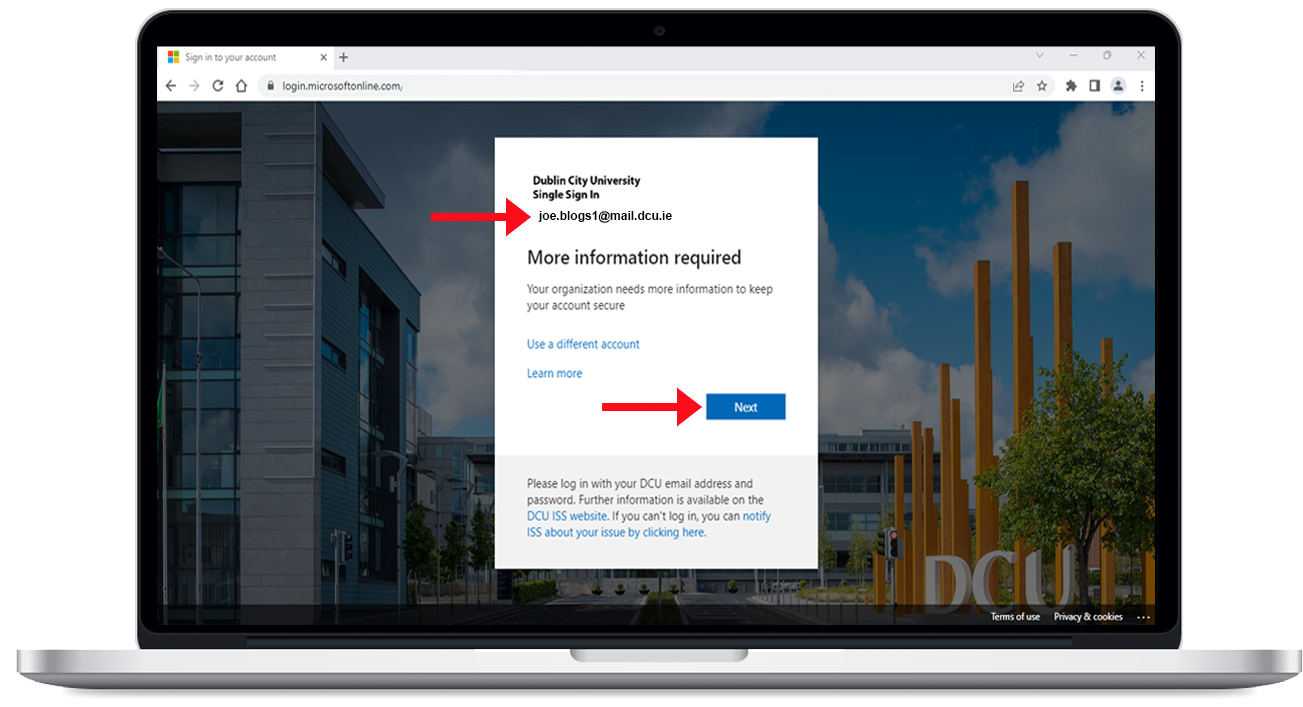
Step 2 - Download the Microsoft Authenticator App
Download/install the Microsoft Authentication app on your mobile device (android/iphone).
This can be done by:
downloading it direct from the relevant store on your phone:
Microsoft Authenticator (App Store)
Microsoft Authenticator (Google Play Store)
OR
Scanning the QR codes when prompted in the process on your laptop/desktop
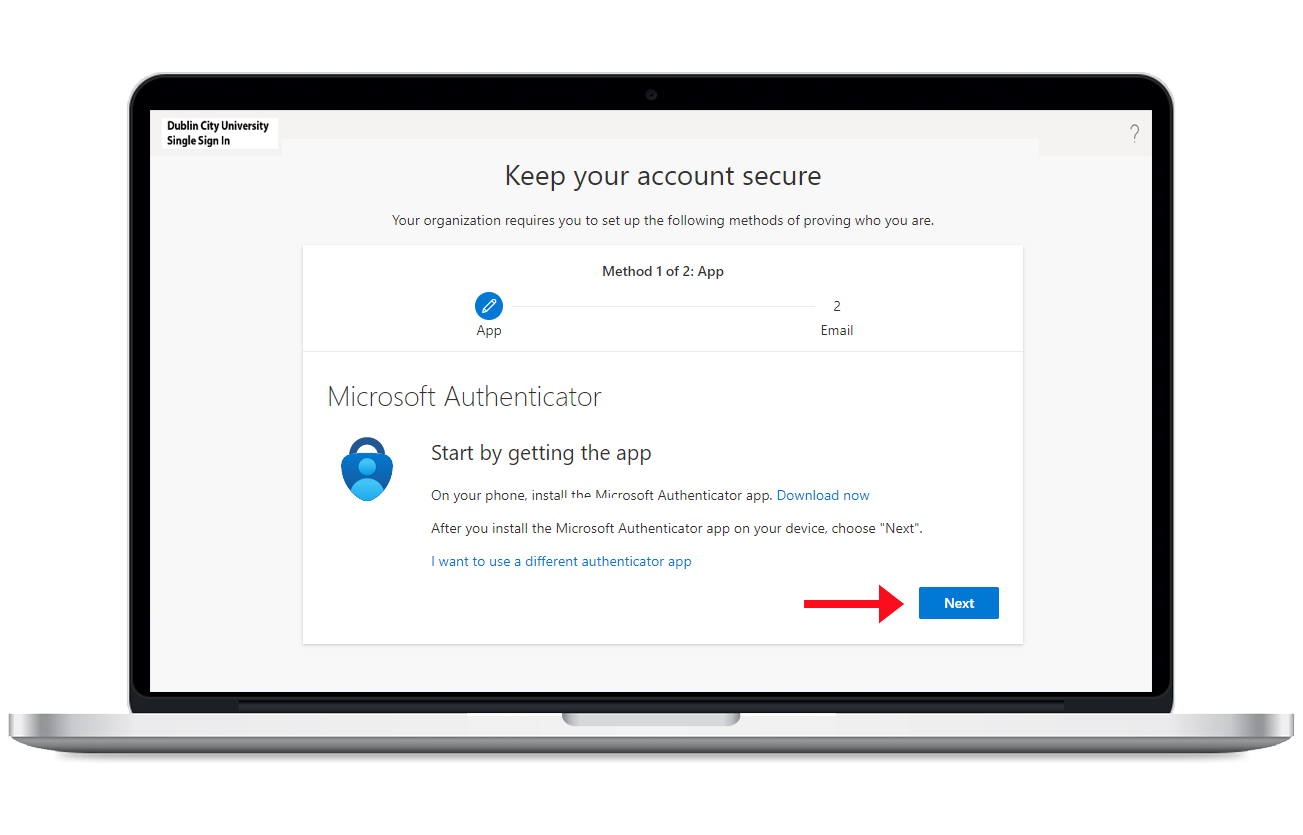
Step 3 - Add Your Account
Open the authenticator app and select the + symbol located at the top right of the home screen. This opens the Add Account screen.
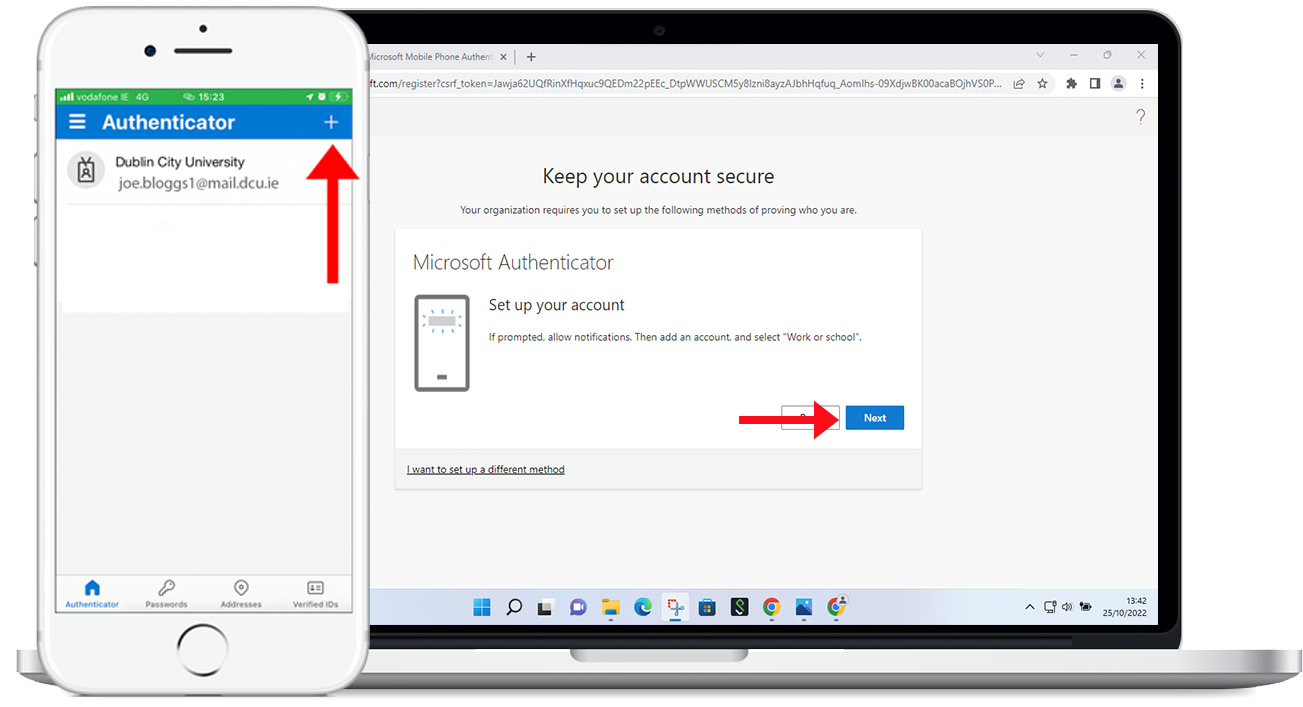
Step 4 - Select Account Type
Select Work or school account on your mobile device, then select the option to Scan QR code.
Warning: Do not select 'Other' or 'Google Authenticator' if prompted. To use DCU's one-tap approval and passwordless features, you must select Work or school account.
To finish this step, select next on your PC or laptop.
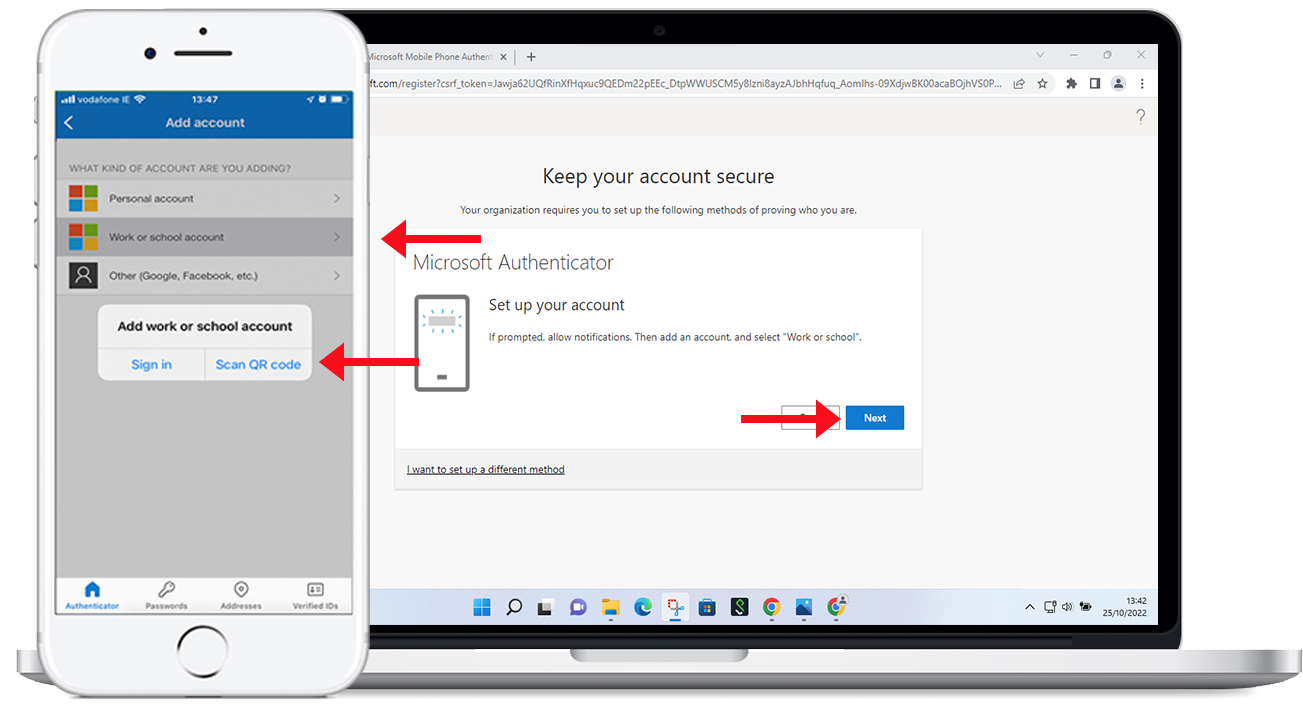
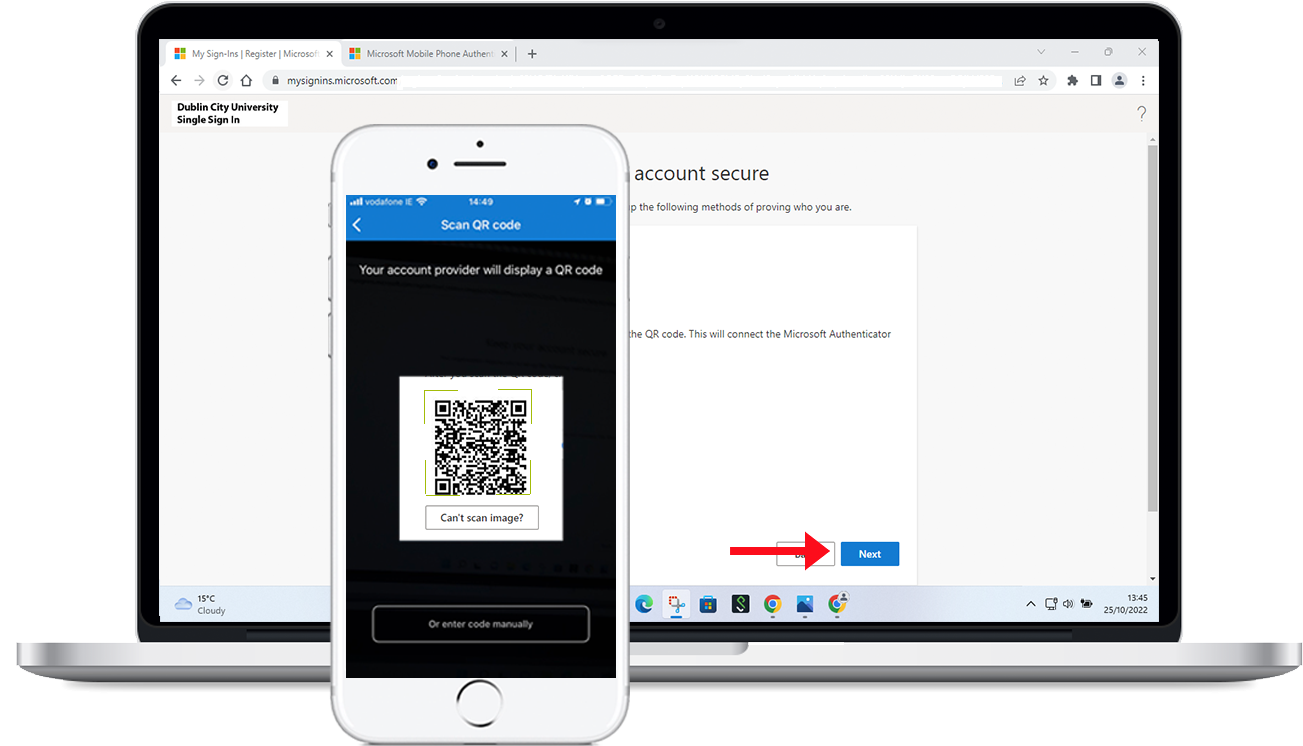
Step 5 - Scan the QR Code
Scan the QR code displayed on the computer screen using the scanner now open in the Authenticator app. Select the Next button to proceed.
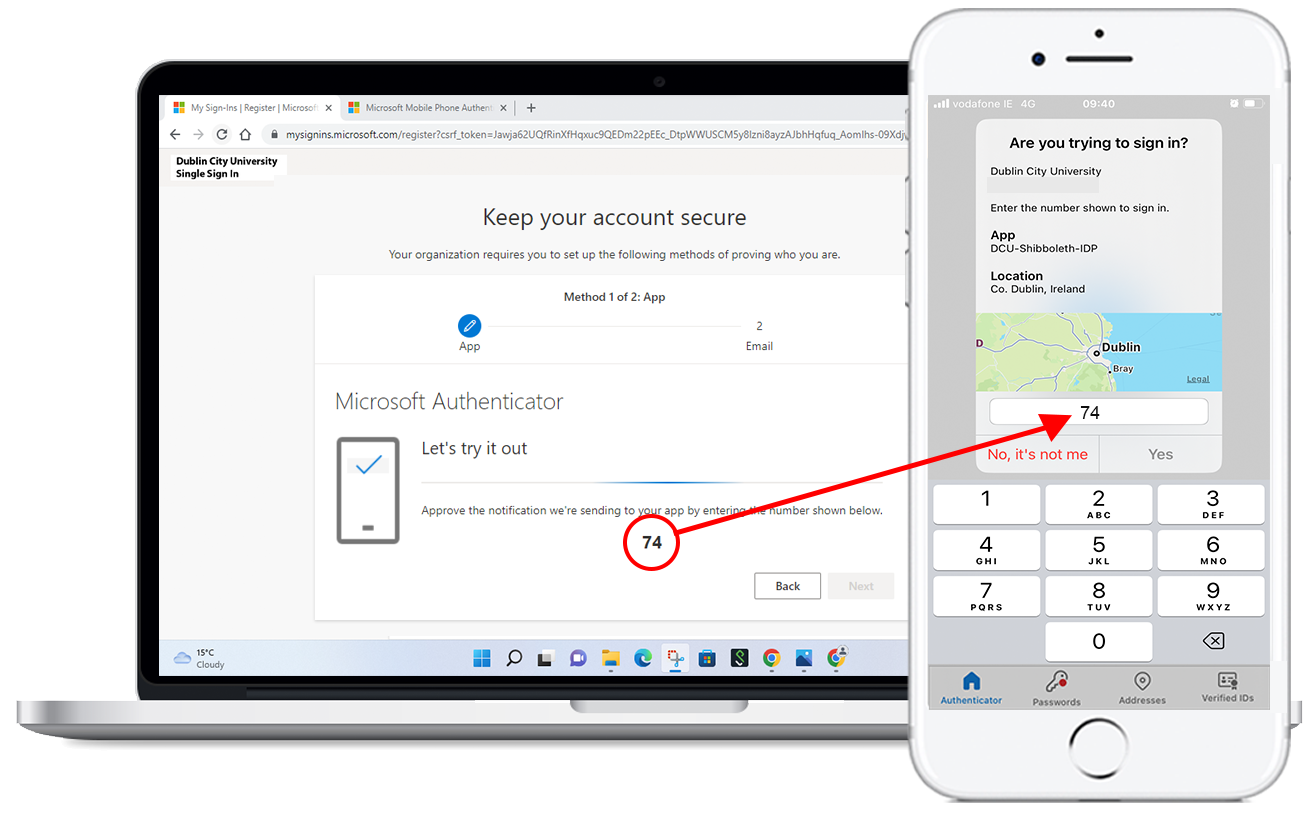
Step 6 - Verify with Number Matching
To ensure that MFA is working correctly,a number will appear on your computer screen. Open the Authenticator app on you mobile device and enter the number. Select the Yes button to complete the test.
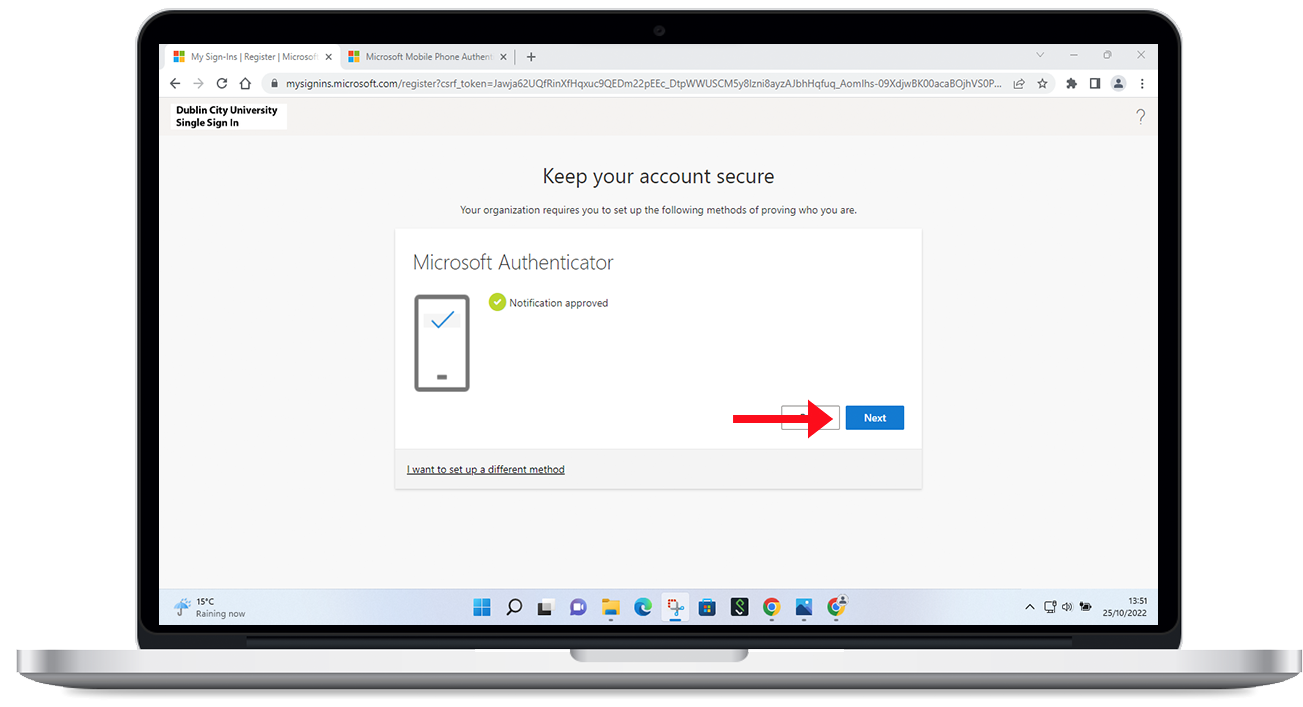
Step 7 - Confirmation
The MFA app is now paired with your DCU credentials. When signing into DCU services in the future, you will be prompted to authenticate your idenity with the app.
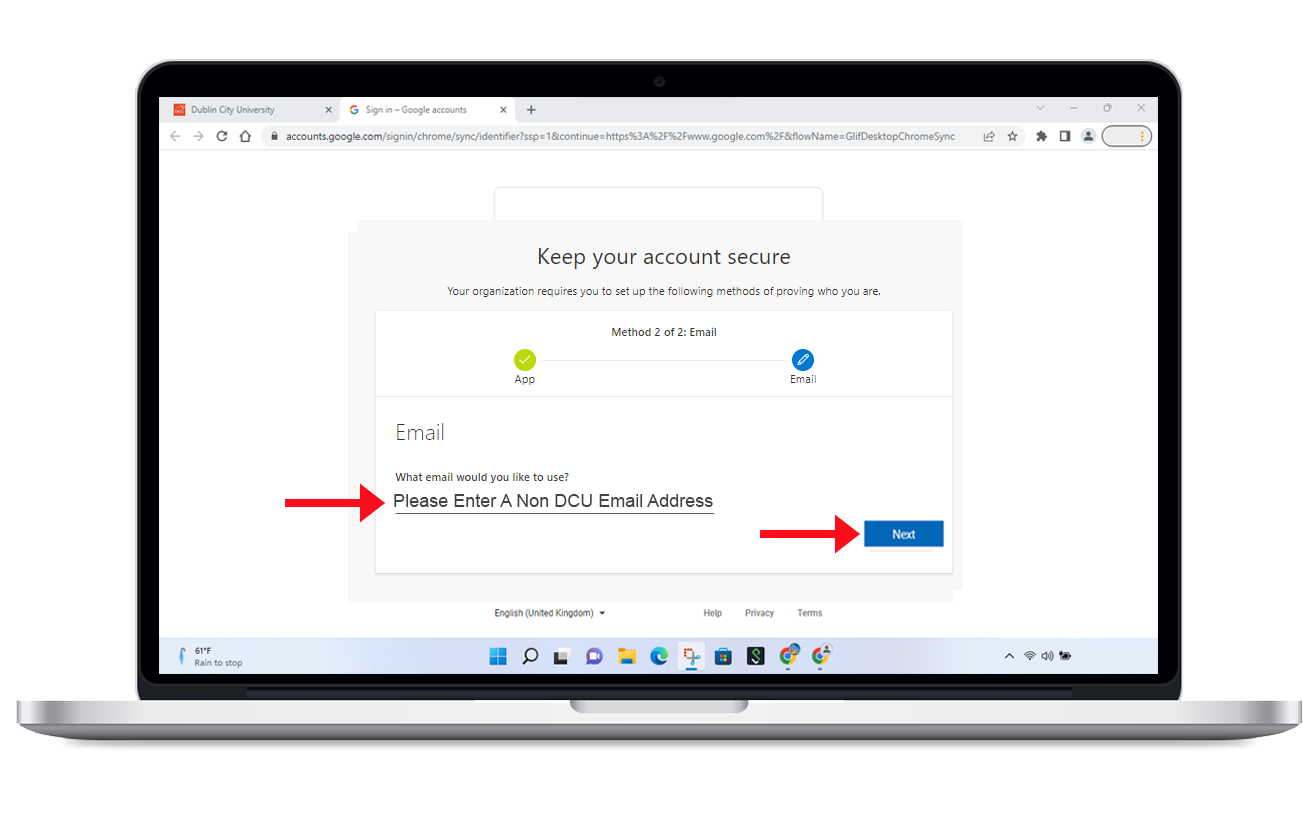
Step 8 - Provide a Recovery Email
Enter an alternate Non-DCU email address. This address acts as your safety net. If you lose your phone and do not have a backup, this email is the only way to reset your school account without having to contact the customer support team.
A code will be sent to this email account and is required to complete the next step.
Step 9 - Retrieve the Verification Code
Open your Non-DCU email account.
Look for an email from "Microsoft on Behalf of Dublin City University" with the subject line: "Dublin City University account email verification code".
Copy the code provided.
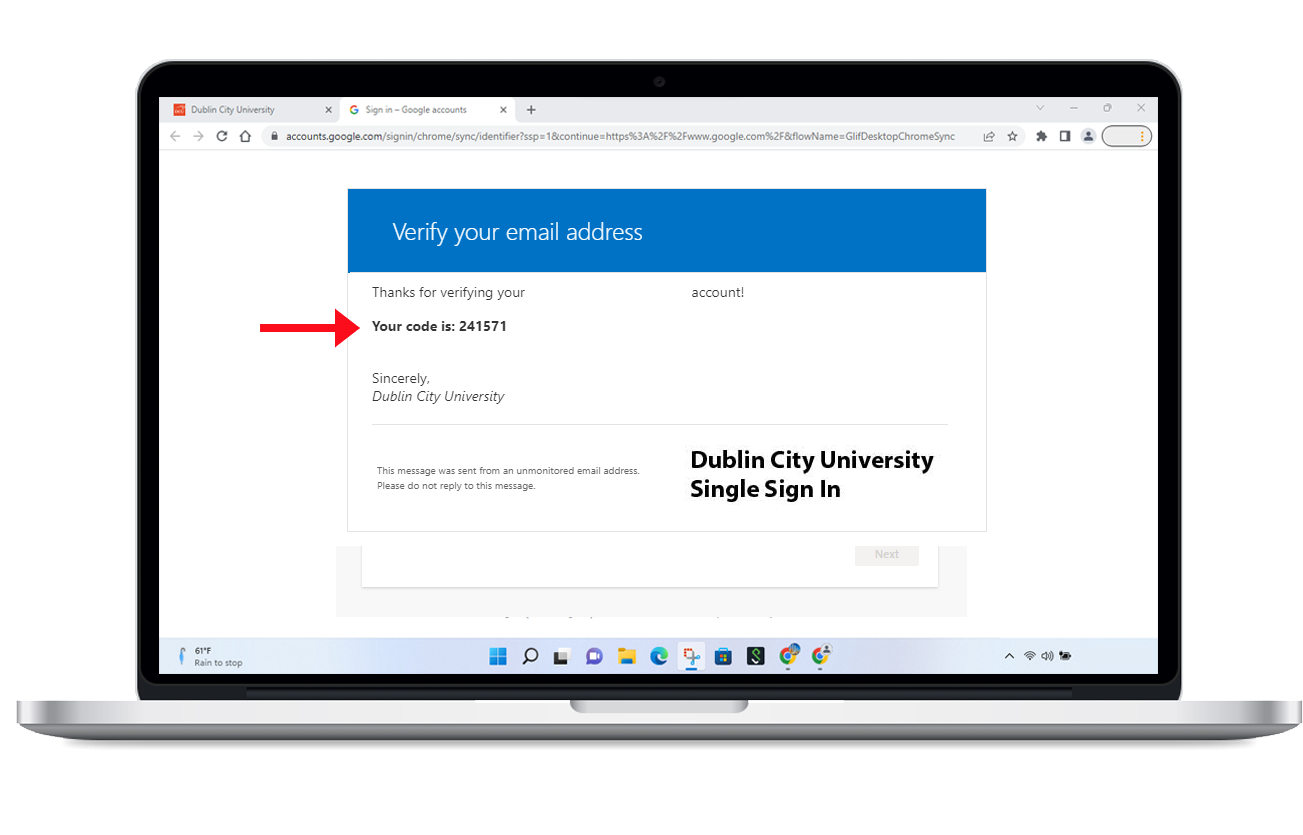
Step 10 - Verify the Email
Paste the code into the Enter Code field on your setup screen and select the Next button.
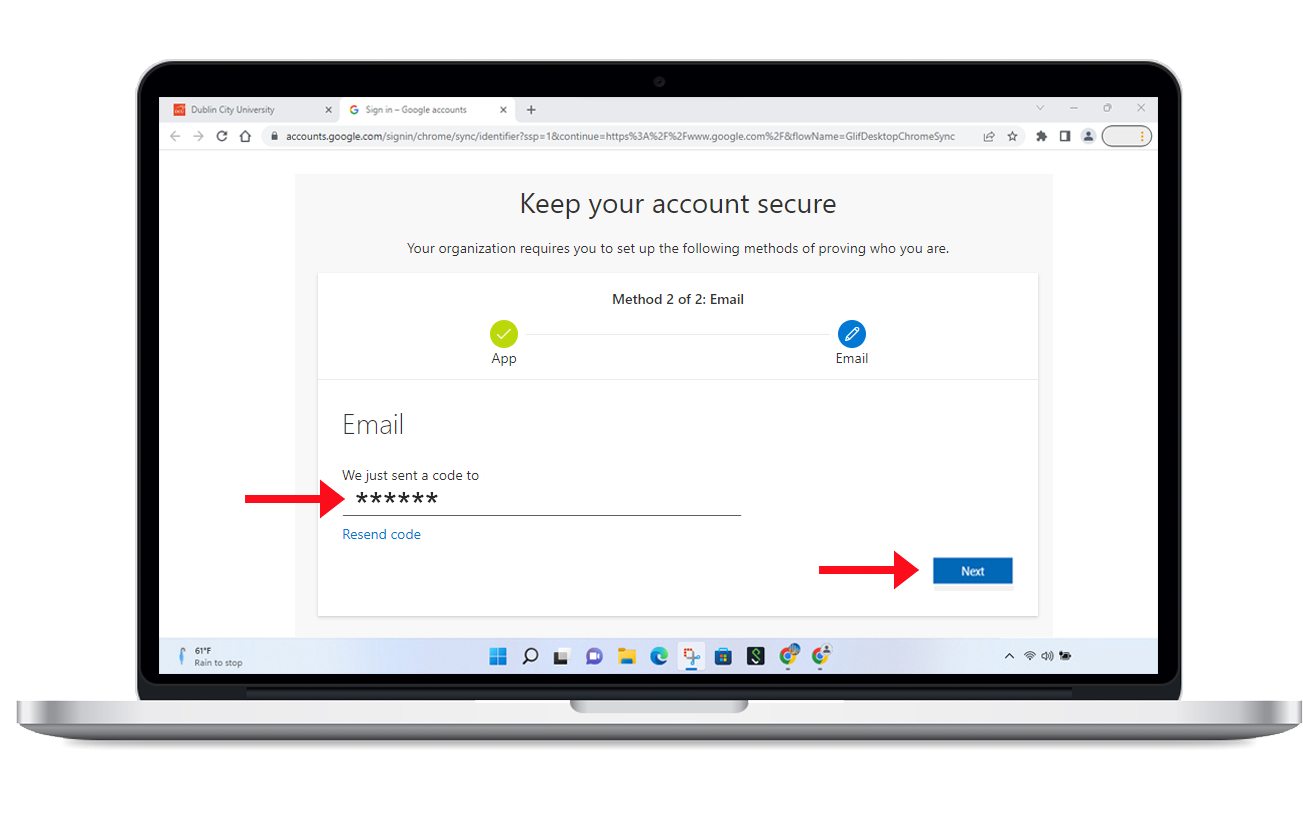
Step 11 - Finalise Registration
Select the Done button to complete the registration process. You can now enable Phone Sign-in within the app settings to log in to DCU services without typing your password.
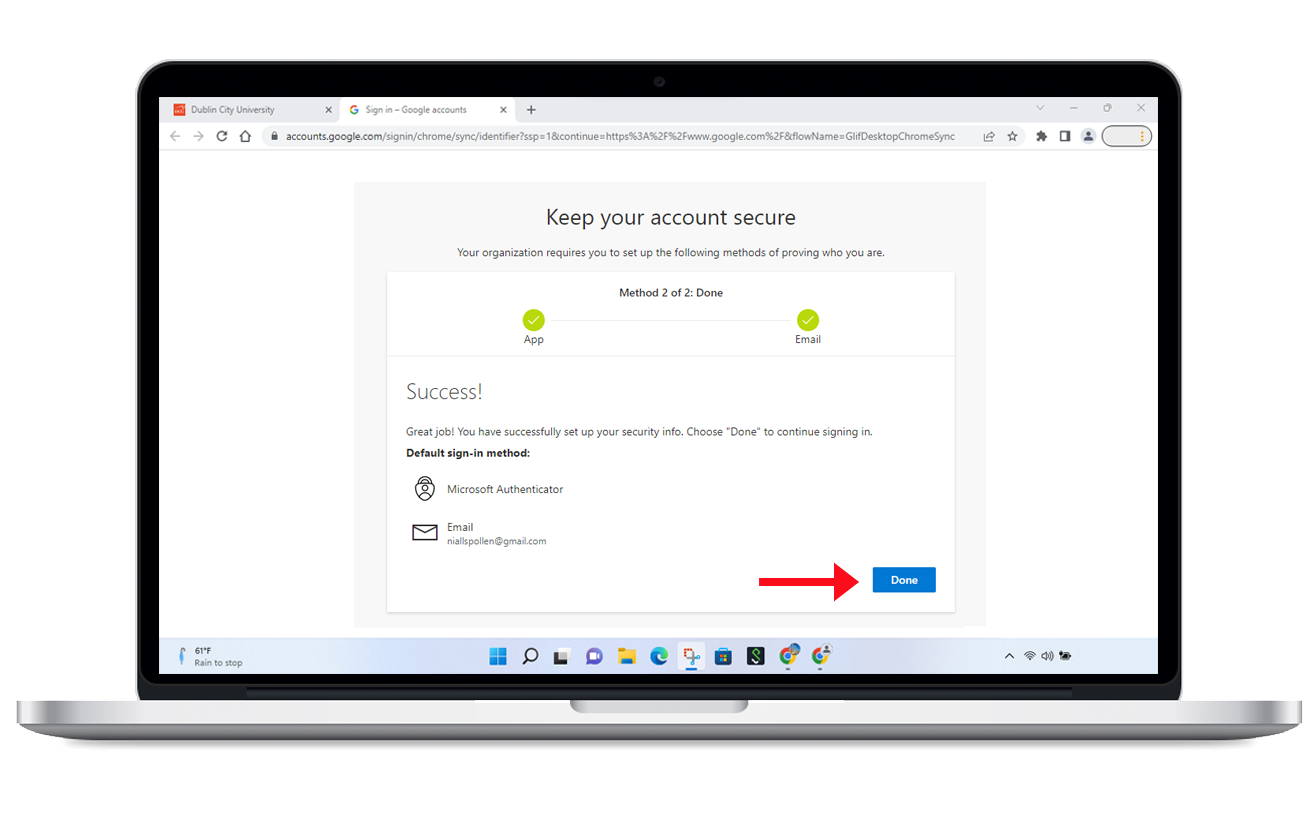
Back up Your MFA Settings
Android - (Samsung, Google, etc.)
Navigate to Settings in the Microsoft Authenticator app and turn on Cloud Backup. You must sign in with a personal Microsoft account to save these settings.
Navigate to Settings and ensure iCloud Backup is turned on. This saves your credentials to your encrypted iCloud Keychain for easy recovery.
Comments
0 comments
Please sign in to leave a comment.